Sysmon
On server systems and workstations where important confidential information is stored, it is necessary to properly monitor the system and keep records of everything that happens, or at least the most relevant events.
On Windows systems there is a tool created by Microsoft called Sysmon.
System Monitor (Sysmon) is a service that, once installed, remains permanently active to monitor and log system activity in the Windows Event Log.
Sysmon can record events such as:
Process creation.
Network connections.
Registry changes.
Executed commands.
In a forensic investigation, we will study logs in general. In particular, the logs provided by Sysmon are of great interest because they can be customized and generate a large amount of information about what is happening on the computer system.
Main objectives of the practice
Install, configure, monitor, and analyze the logs generated by Sysmon.
Software to be used
Windows 7, 8, 10 or 11(32-bit or 64-bit)
Tasks
Install or use a virtual machine with Windows.
Download the Sysmon utility.
Download the configuration file.
Investigate the content of the configuration file. It is interesting to see how it is structured and what the registered event IDs refer to.
Follow the instructions to install the service on the previously created virtual machine.
Once the Sysmon service is enabled, install some software on the virtual machine, for example Notepad++.
The final part of the Sysmon practice consists of analyzing the collected information.
By default, Sysmon stores logs in the event log file located at the following path:
C:\Windows\System32\winevt\Logs\Microsoft-Windows-Sysmon%4Operational.evtx
Open the file using the Event Viewer.
Export the contents of the file to XML format (context menu → save all events as XML).
Open the XML file using the SysmonViewer tool and explore its functionality.
Solution
Download and save all the tools and configuration files on the same folder
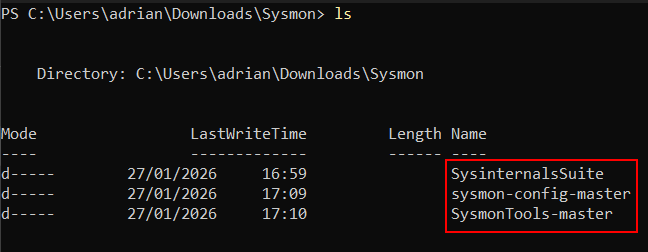
Open a powershel terminal as administrator and locate into the previous folder. Then, execute Sysmon using the following command:
SysinternalsSuite/Sysmon64.exe -i sysmon-config-master\sysmon-config-master\sysmonconfig-export.xml
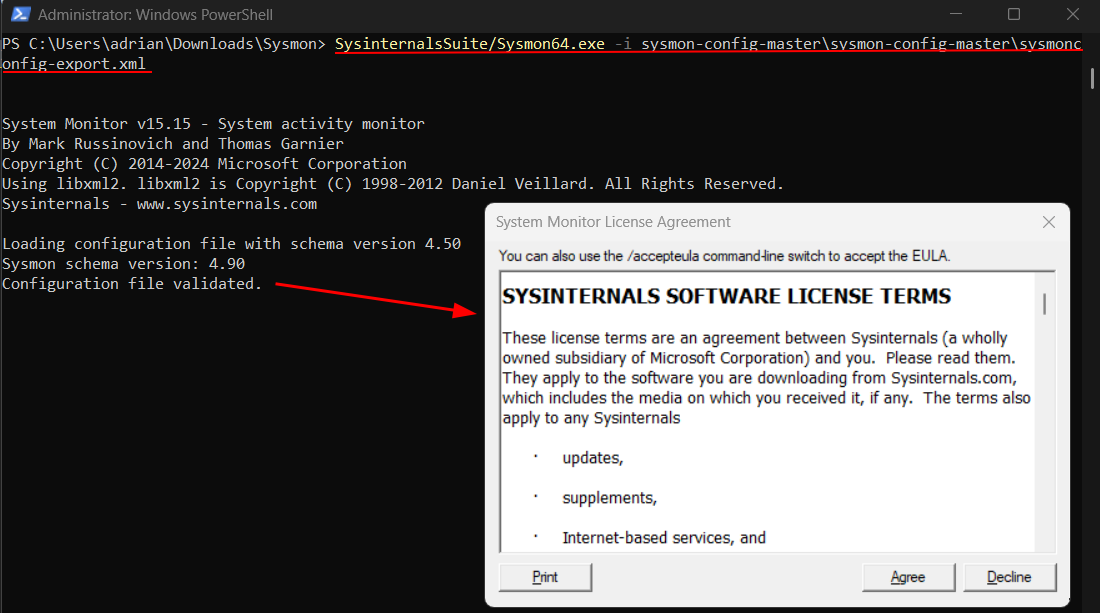
Sysmon should start running.
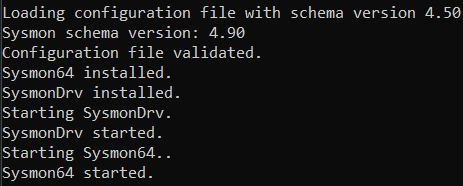
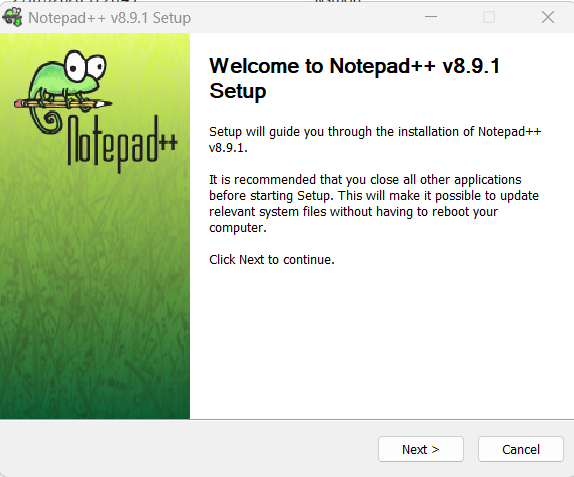
Download and install any application. In this case notepad++ will be installed.
In powershell, run the following command:
eventvwr.msc C:\Windows\System32\winevt\Logs\Microsoft-Windows-Sysmon%4Operational.evtx
Navigate to
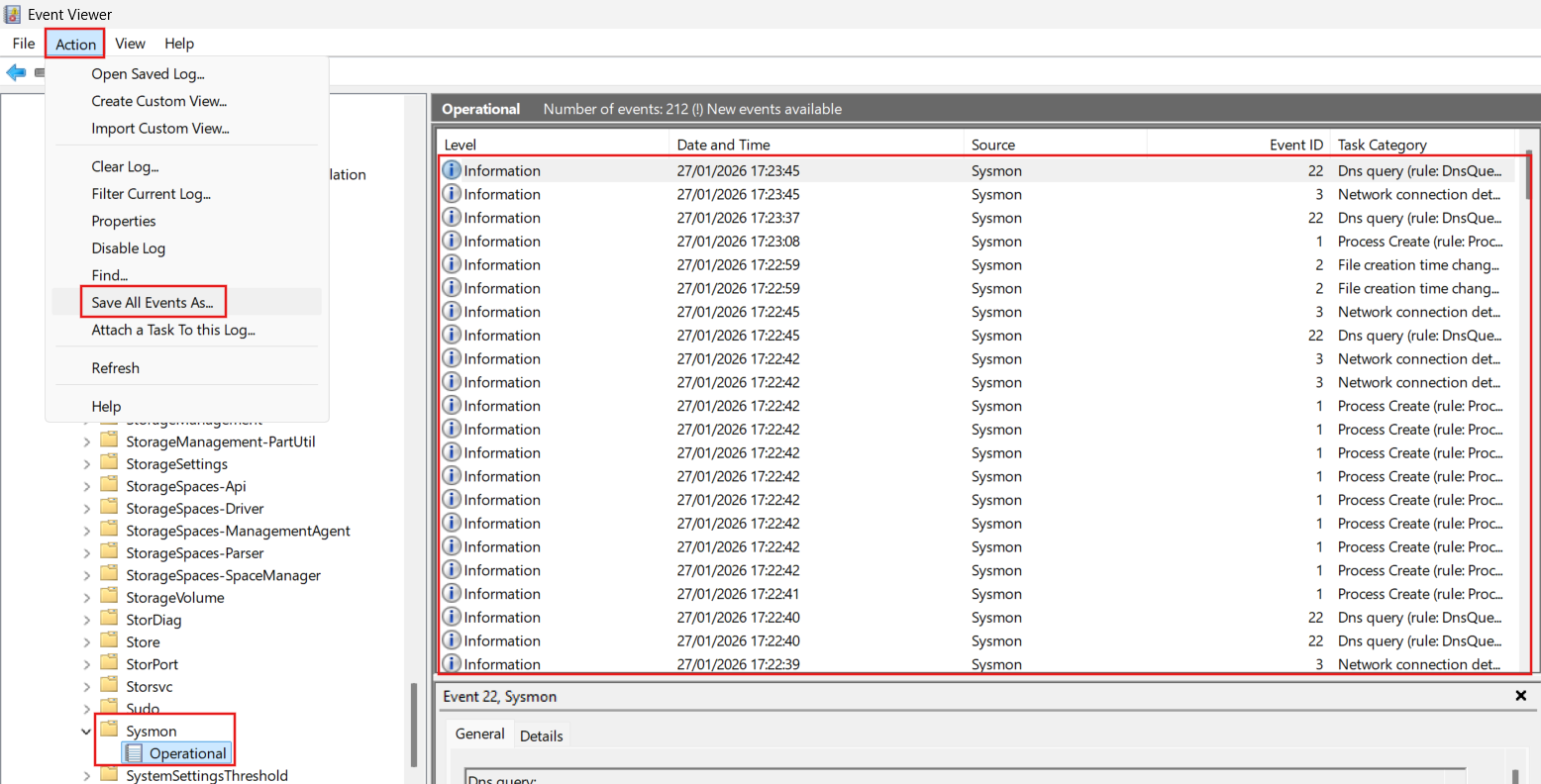
Event Viewer\Applications and Services Logs\Microsoft\Windows\Sysmonand verify that some logs have been saved. Then, click on “Action” –> “Save All Events As…”
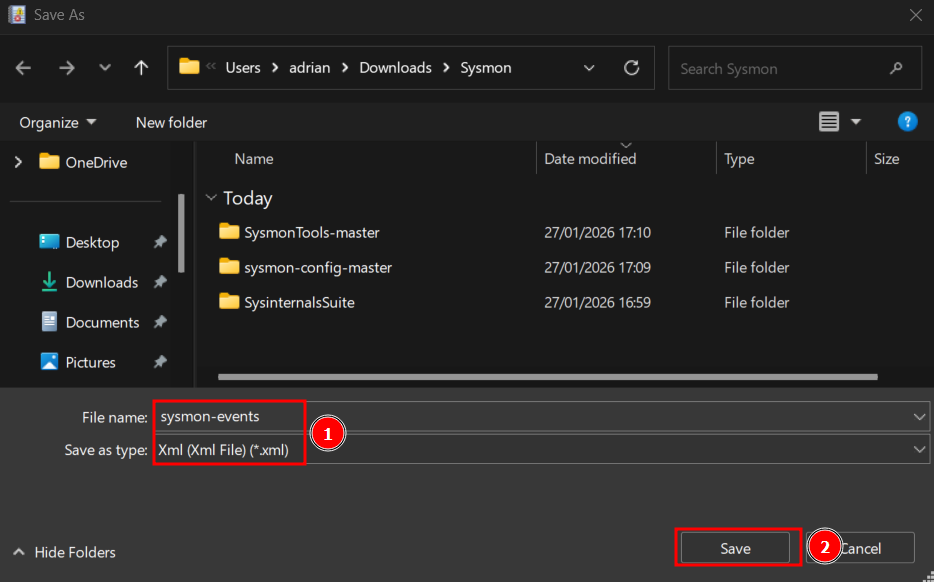
Export the file as an xml file and click on “Save”.
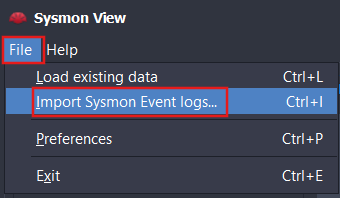
Open Sysmon View anc click on “File” –> “Import Sysmon Event logs…”.
Select the file exported previouly.
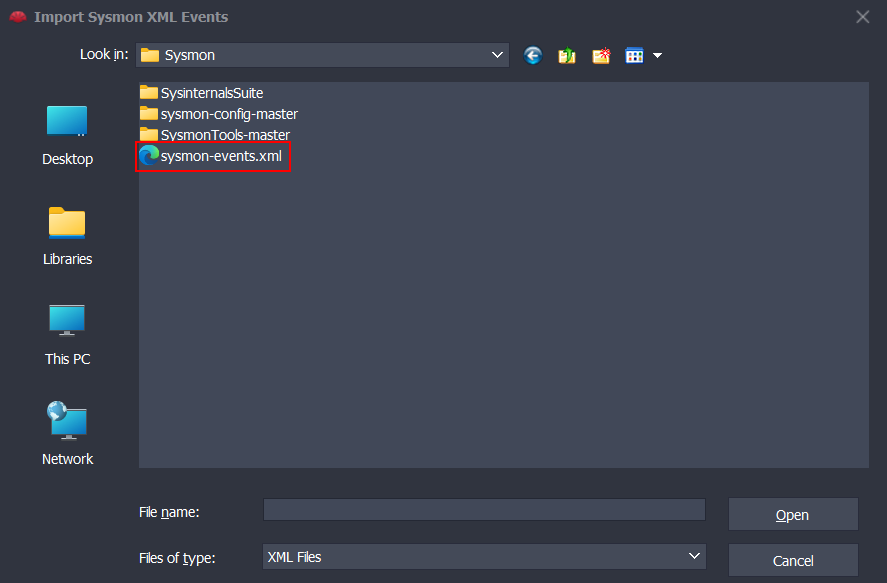
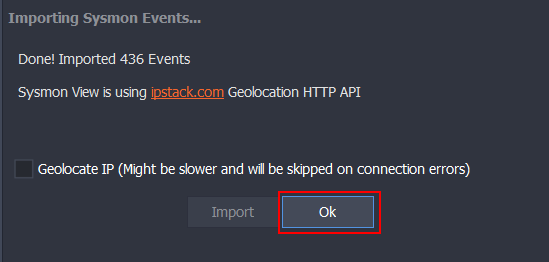
If the import is succesful, a message will appear. Then, click on “Ok”.
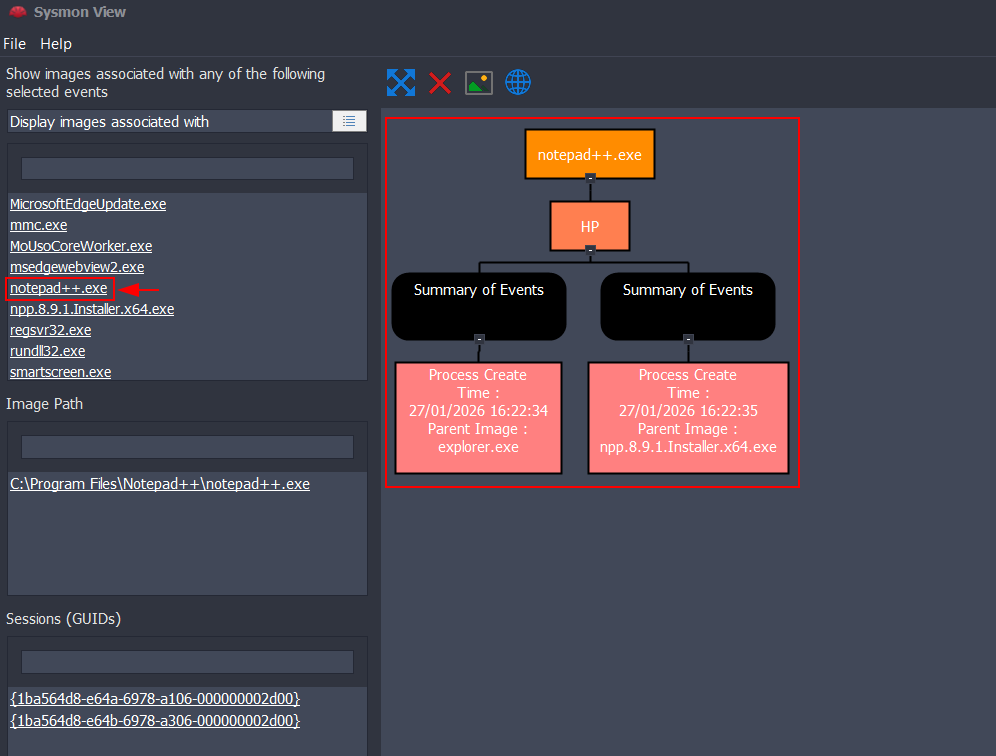
On the left side, the most recent events will appear. Select the one related to the installation of Notepad++. Then, a complete schema containing all the logs will be generated. There, we can see how the entire process started with the download from Firefox and continued with the creation of .dll files after executing the installer.
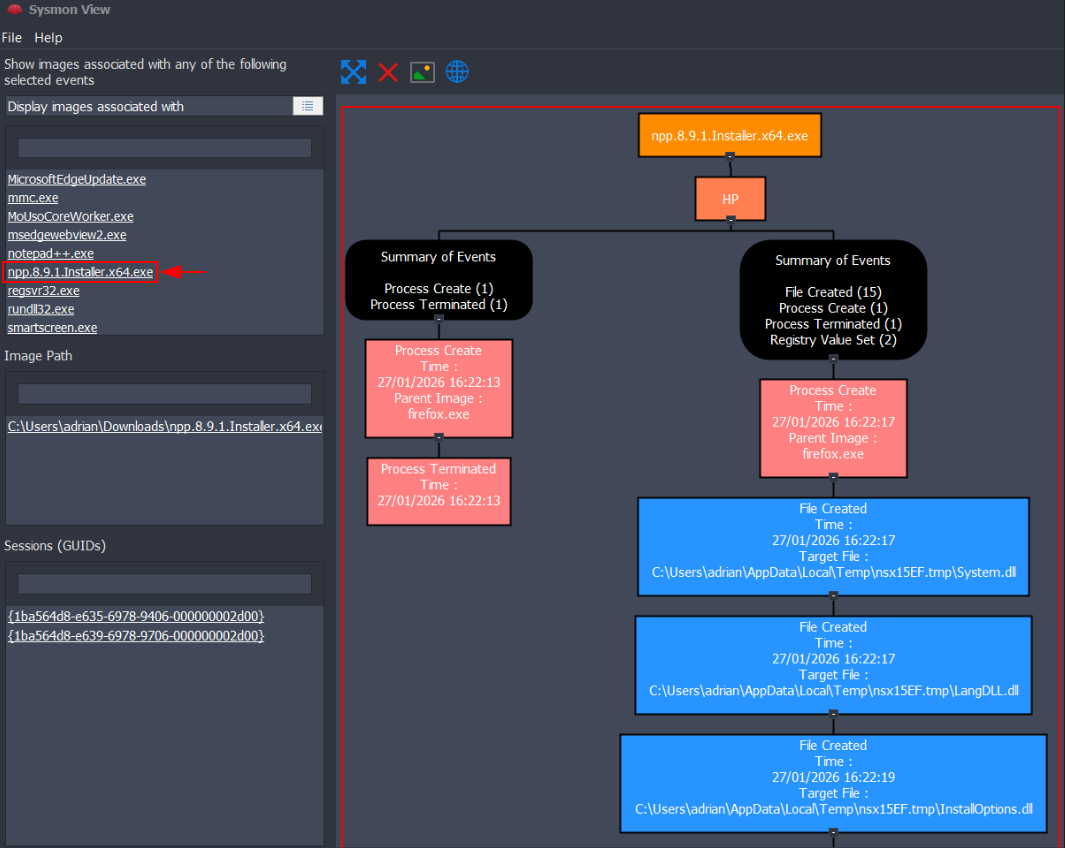
On the left side, there is another event related to Notepad++. In the schema, we can see two events: one corresponds to the application launching automatically after the installation was completed, and the other corresponds to the instance that I launched manually from the windows explorer.